Emails✨
Send, receive and reply to emails without leaving Enqlare. Connect your Gmail or Outlook account once, build templates for the messages you send every day, and keep every port call's correspondence in the right place.
Set up your email
Before you can send anything, an admin needs to connect a Gmail or Outlook account to your company in Company settings > Email setupCompany settings > Email setup. The connection runs through Nylas, our email integration provider, and syncs the folders you choose — we recommend inbox and sent.
Once a channel is connected and the folders have synced, you can send from that address anywhere the email composer appears.
Good to know: emails sent from Enqlare are automatically linked to the port call you sent them from, so the whole thread stays with the port call.
Create an email template
Templates save you rewriting the same nomination, NOR distribution or pre-arrival message for every call.
Open a port call, go to the Actions menu and select Email templates
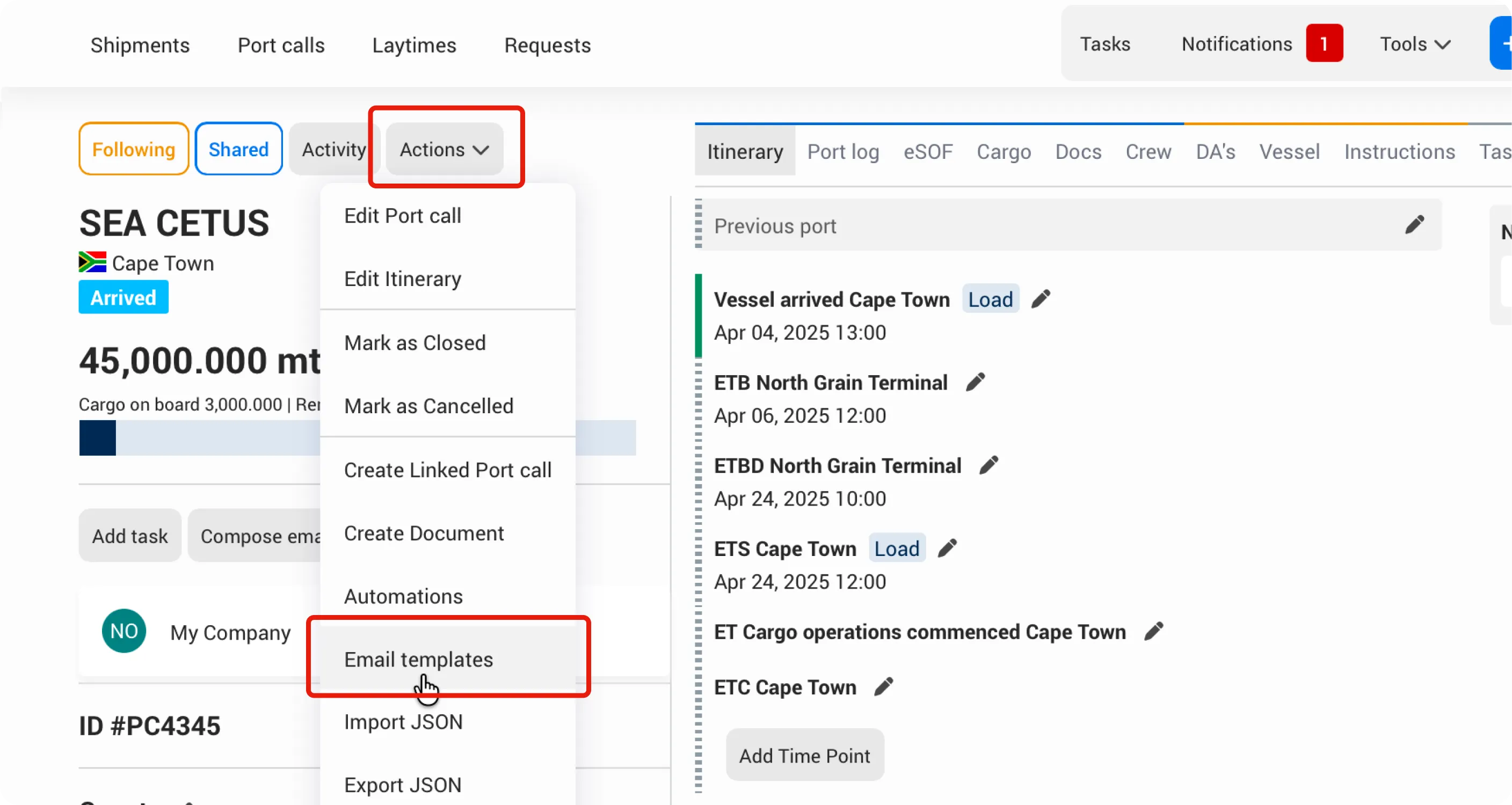
Click New template to build a new one, or the ... menu next to an existing template to edit or delete it
Give the template a clear name, something you or your team will instantly recognise as the right one to reach for
Add a subject line, write the body in the editor
Insert tokens for anything that changes from port call to port call, such as vessel name, port, berth and ETA. Copy (CTRL+C / CTRL+V) a token from the Copy/paste tokens list on the right and paste it into the subject line or the body. When you apply the template, each token is replaced with the real value from that port call.
Attach any files that should go out every time by clicking the upload area or dropping them in
Click Save
Tip: click Load more at the bottom of the token list to see the full set. Tokens written as {%Vessel%} insert a single value. Tokens written as {#CargoList#} insert a whole list, such as every cargo line or every berth on the call. Such tokens need to be placed in a new line with a paragraph.
Apply a template
Applying a template replaces whatever is already in the composer, so pick your template first and edit afterwards.
Open a port call and click Compose email
Click Apply template
Select the template you want. The subject and body load into the composer, with every token replaced by the real value from the port call.
Edit anything that looks off or missing
Add your recipients
Click Send
Tips for styling your email
Spacing
Press | You get |
|---|---|
Enter | A new paragraph, with an empty line between blocks |
Shift + Enter | A new line, with no gap |
Tables | Do not drag the column widths. Columns adapt to your text and to the screen the email is read on, so resizing one locks it to your screen instead of the recipient's. |
The Enqlare editor shows paragraphs and line breaks the same way, so do not worry if you cannot tell them apart on screen.
For email templates - clean up pasted text in Word first
Text copied from another email or document brings its old formatting with it: bold you did not ask for, stray colours, extra blank lines. The quickest way to get a clean template is to strip everything in Word, rebuild only the formatting you want, and then paste the result into Enqlare.
Open a blank Word document and paste your text in
Select everything and click Clear All Formatting on the Home tab
Turn on formatting marks so you can see the paragraph and line-break symbols. On the Home tab, click ¶.
Set your spacing deliberately. Press Enter to start a new paragraph, which leaves an empty line between blocks. Press Shift + Enter for a line break, which starts the next line with no gap. Use line breaks inside an address block or a signature, and paragraphs between sections.
Apply the formatting you actually want, such as bold on the key figures
Copy the finished text and paste it into your Enqlare template
The Enqlare editor shows paragraphs and line breaks the same way, so do not worry if you cannot tell them apart on screen. The spacing you set in Word is what the recipient's mail client renders.