Tasks
Tasks help you keep track of what needs to be done—or what’s already been completed. They’re especially useful when multiple people are working on the same vessel, ensuring clear communication and avoiding duplicated efforts.
You can view all created tasks in the dedicated Tasks overview found in the top bar. From there, you can filter, edit, mark tasks as done, and navigate directly to the vessel the task relates to.
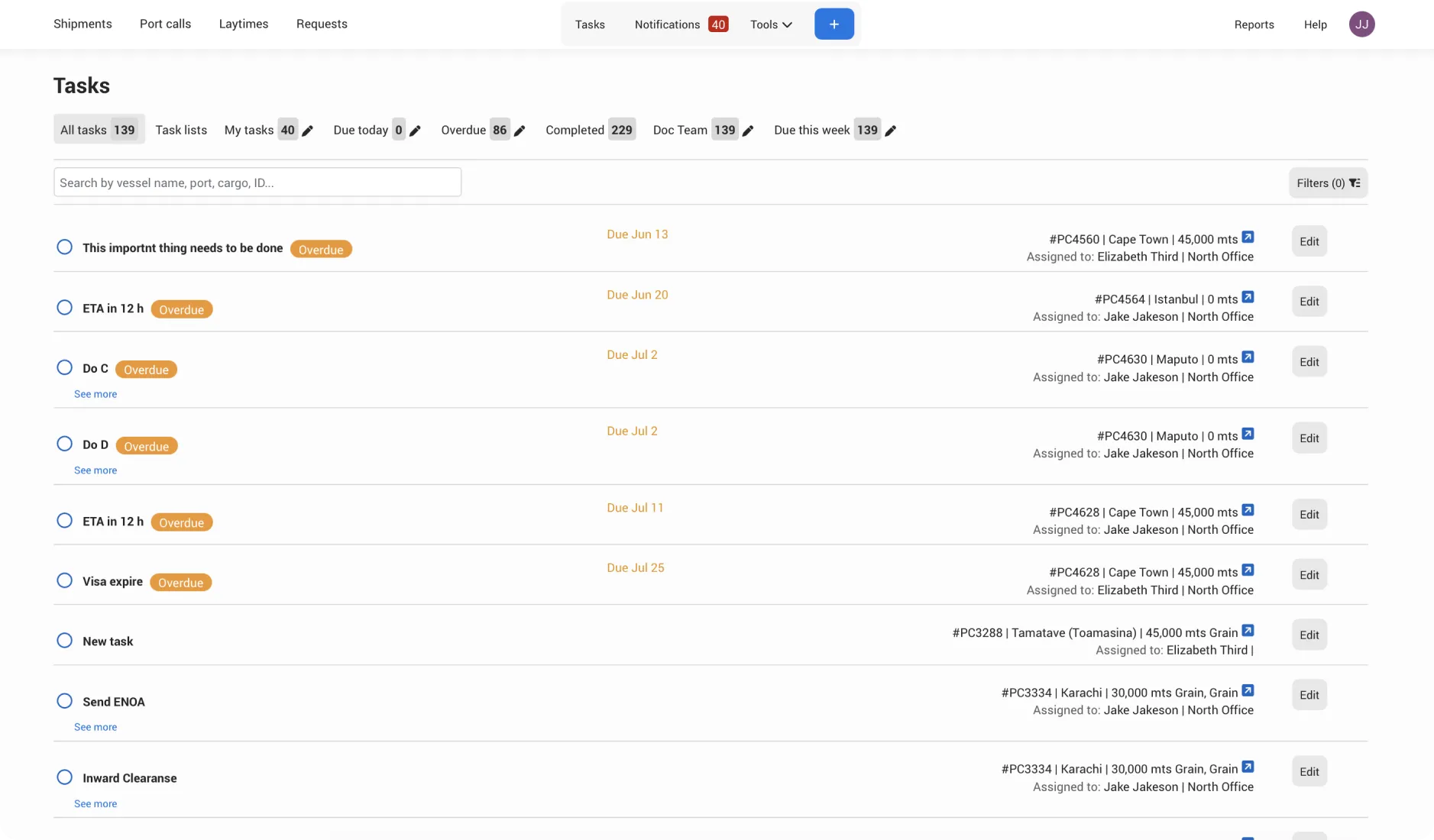
You can also save filters and create custom task views for quick access later. These saved overviews are personal and only visible to you.
Click on the overview you want to start from: All tasks, My tasks, Overdue tasks or Completed.
Select the filters you want to apply to your new view
Click Save as new view
Name the tab and Save
Create a task list
Task lists are ideal for repeatable checklists that stay the same across port calls. They let you save a predefined set of tasks and quickly add them in bulk whenever needed—saving time and ensuring consistency.
Navigate to Task lists tab
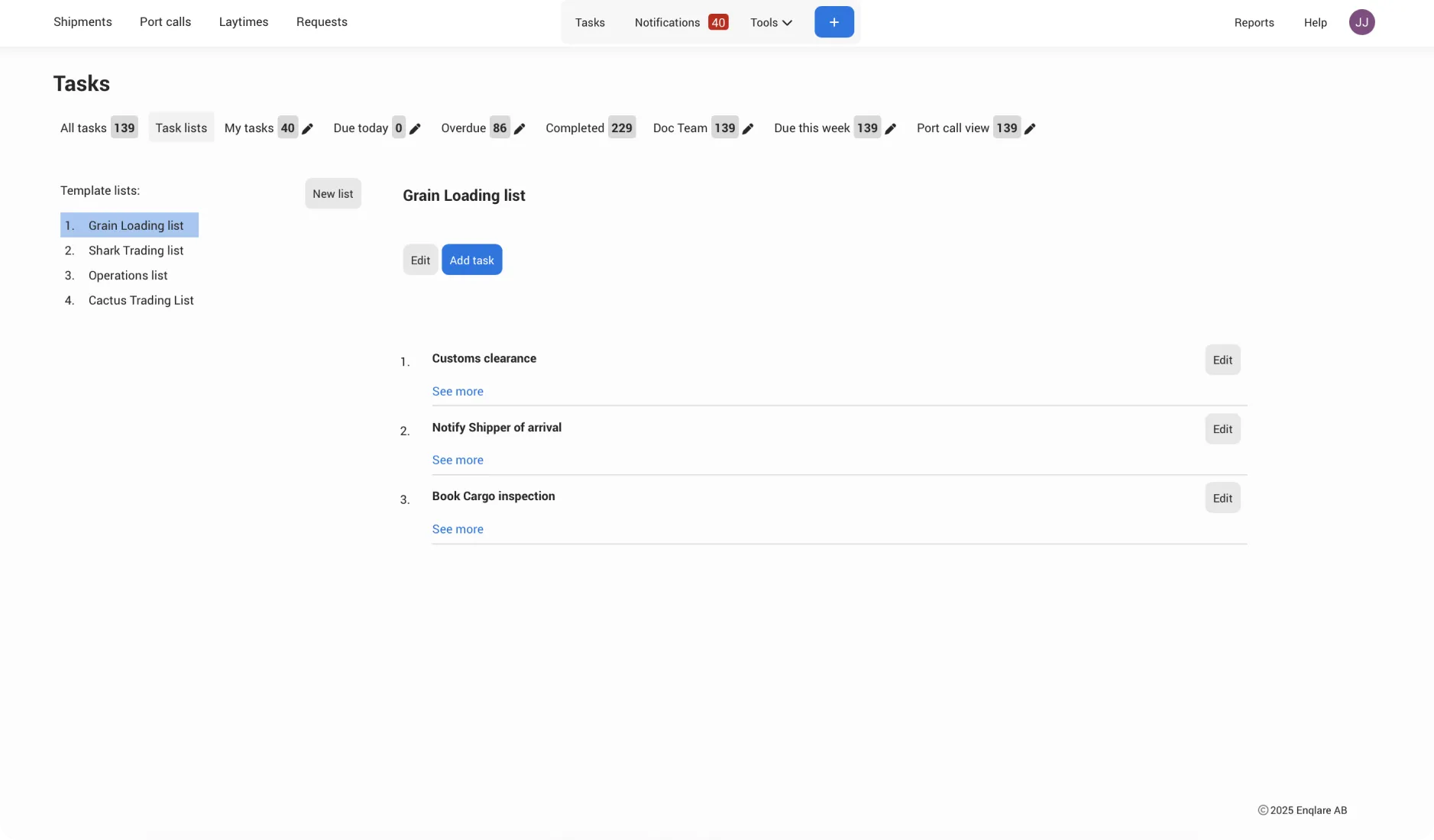
Click New list
Enter a name, add a description if needed, and click Save.
Click on the name of the list you just created.
Click Add task
Add a task list to a Shipment, Port call, or Laytime
Each product—Laytime, Port call, and Shipment—includes a dedicated Tasks tab that works the same way across all of them. Tasks are always private to your company and are never visible to or shared with other companies.
To add a Task list:
Navigate to the vessel where you want to add the Task list.
In the Tasks tab, click on Task lists
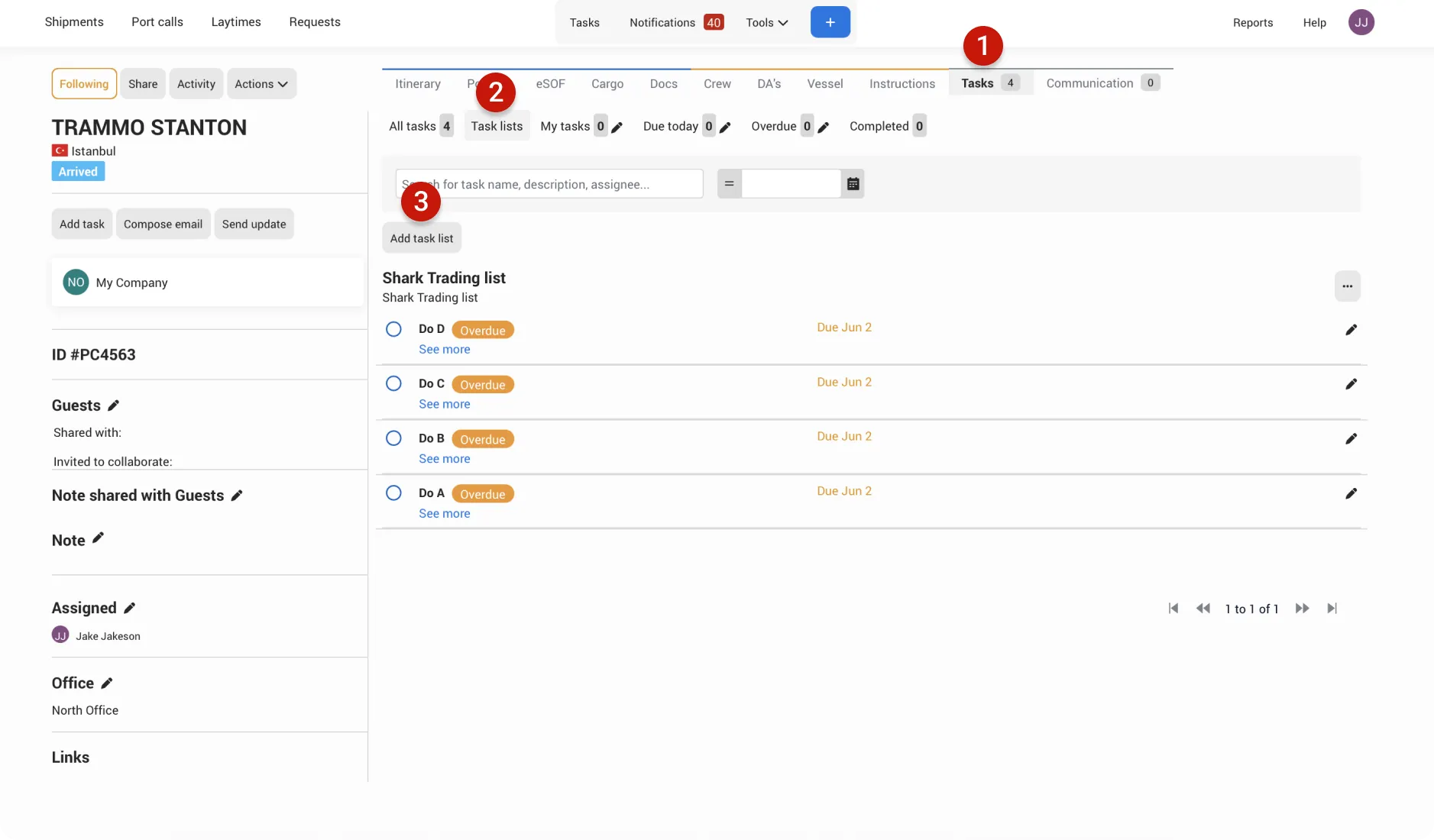
Click Add task list
Select the relevant list and Save
Create a task
Navigate to the vessel where you want to add the task. When creating a task, all fields are optional—add as much or as little detail as needed.
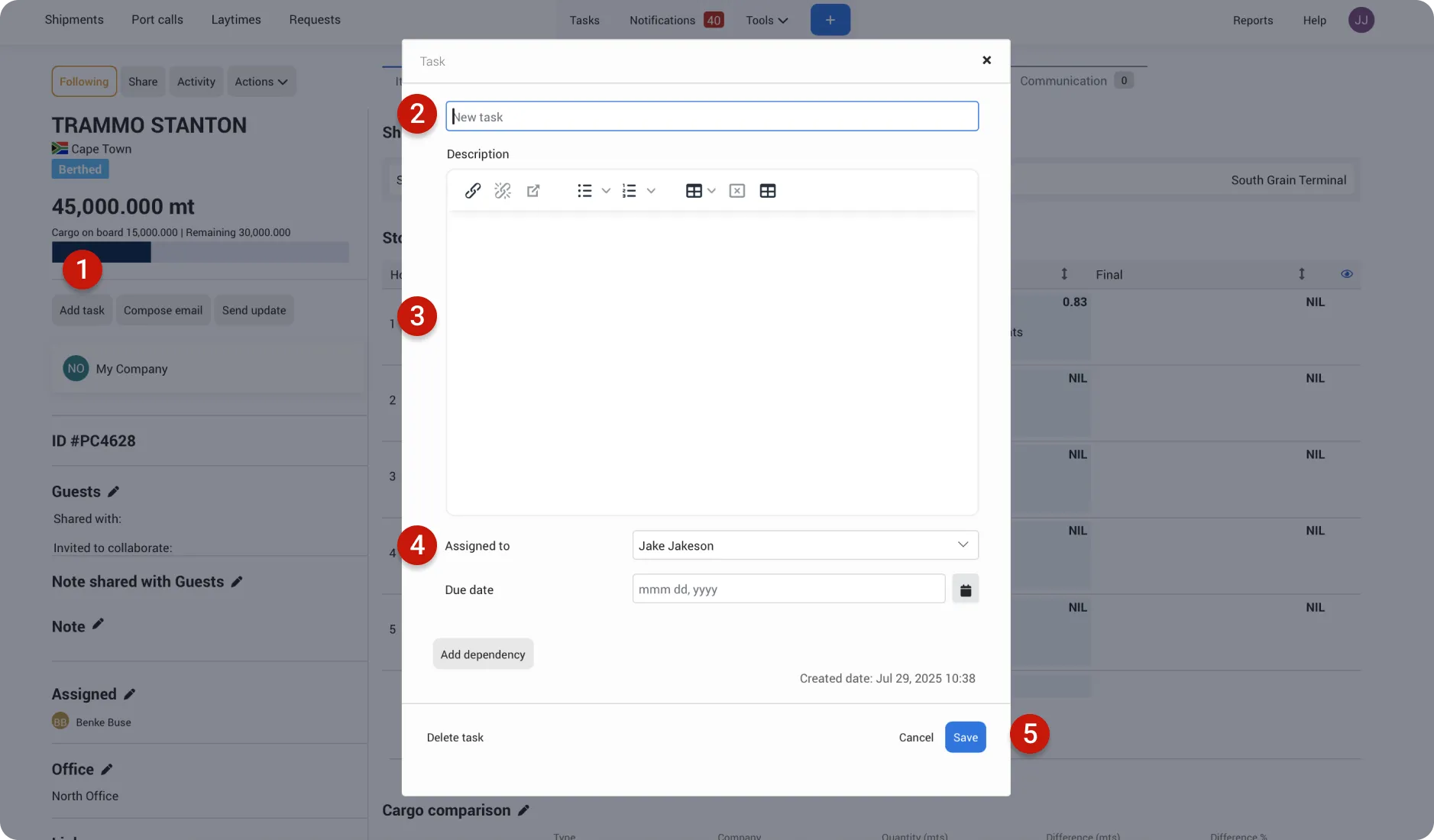
Click Add task
Enter a name for the task to easily identify it
Add a description if relevant to provide more context or instructions for the task.
Assign the task to a team member and set a due date if applicable.
Click Save