Crew Management
The Crew tab helps you manage all crew changes in one place. Instead of juggling spreadsheets, emails, and separate documents, you can import, track, and generate everything you need directly in Enqlare.
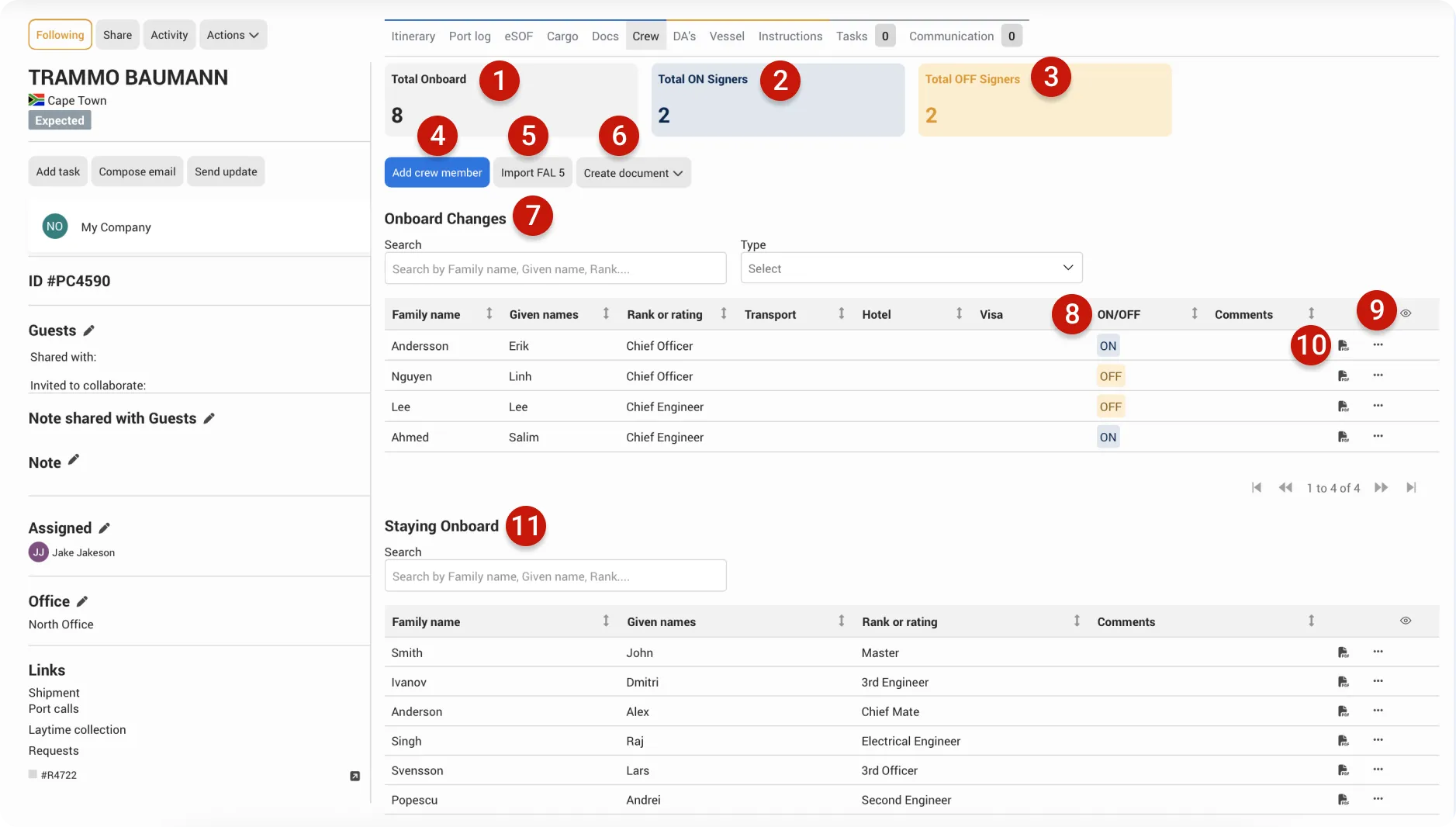
- Total Onboard: Displays the total number of crew currently onboard the vessel. This includes both Staying Onboard crew and ON signers.
- Total ON signers: Shows the crew members who have been marked as joining the vessel (ON signers).
- Total OFF signers: Shows the crew members who have been marked as leaving the vessel (OFF signers).
- Add crew member: Add one or more crew members to the Onboard changes table or the Staying Onboard list.
- Import FAL 5: Quickly import multiple crew members at once by filling out the Enqlare FAL 5 Excel file and uploading it to the platform.
- Create document: Generate any required PDF or DOCX document using the crew member data stored in Enqlare.
- Onboard changes: Lists all crew members who are moving — either joining (ON) or leaving (OFF) the vessel. You can also mark additional needs such as transportation, hotel, visa, or add extra comments for your own notes.
- ON/OFF: Indicates whether a crew member is marked as ON (joining) or OFF (leaving) the vessel.
- Eye icon: Customize your view of the table. You can toggle columns ON or OFF to focus on what matters most, and you can also rearrange columns by dragging them.
- PDF icon: Generate a document for a single crew member, such as a Letter of Invitation.
- Staying Onboard: Lists all crew members who are remaining onboard the vessel.
Add Crew members?
When adding a crew member, all fields are optional. Enter only the information that is relevant for your records.
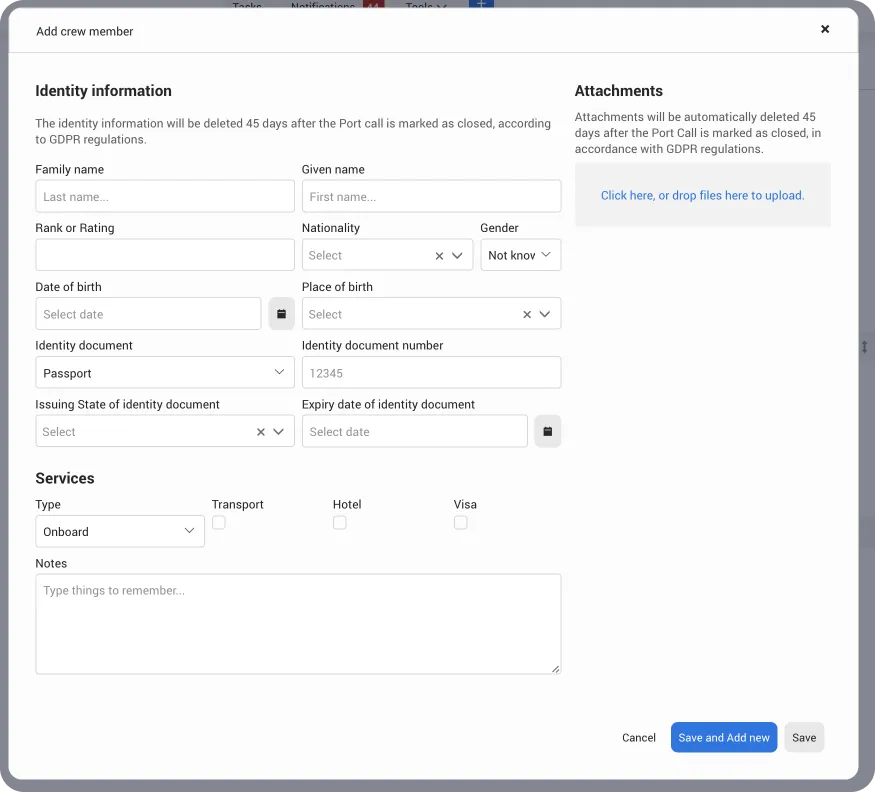
Click Add crew member
Enter all relevant information and attachments.
Save your entry
- Click Save and Add New to continue adding more crew members.
- Click Save if you are finished.
Import FAL5 excel?
Importing is useful when you have many crew members to add, or if you already have their information in another document that can be copied into the Enqlare FAL 5 template. The Excel import adds all crew details at once, but if you need to mark hotel, visa, or transportation requirements, you will need to update each crew member’s line individually.
Click Import FAL 5 button
Download the Enqlare FAL 5 template and enter your crew data.
Note:
Do not rearrange, add, or delete any columns in the template. Changing the structure may prevent the system from reading it correctly.
Select whether you want to add the crew members to the existing list or replace your current list.
Add the new crew members to the existing list: If you have already added some crew members, this option will keep them and add the new members from the FAL 5 file. The result is a combined list with both the previously added members and the newly imported ones.
Replace your current crew list with the new one you're uploading: If you have already added some crew members, this option will remove them and replace the entire list with the members from the FAL 5 file. The result is a list containing only the newly imported members.
Import the completed Enqlare FAL 5 document into the system.
Click Save
Enqlare FAL 5 Excel
The Enlare FAL 5 Excel can be downloaded from the platfrom, when clickin Import FAL 5. Once you download the file, you can copy paste the crew members information into the template.
Pro tip:
The Enqlare FAL 5 Excel document is sensitive to changes in column order. To make copying easier, you can reorder and format the columns in the source document you are copying from. This allows you to copy all the data at once instead of column by column.

- ON/OFF Signer: Enter ON if the crew member is joining the vessel, OFF if they are leaving, or B if they are staying onboard.
- Comments: Any text entered here will appear in the platform’s comment field. Use it for reminders or important notes.
- Family name: Enter the crew member’s last name.
- Given names: Enter the crew member’s first and middle names.
- Rank or rating: Enter the crew member’s job position.
- Nationality: Enter the nationality from the passport or identity document using a three-letter code (for example, SWE for Sweden, GBR for Great Britain).
- Gender: Enter M for Male, F for Female, NA for Not applicable, or NK for Not known, as shown in the identity document.
- Date of birth: Enter the date of birth in the format YYYY-MM-DD, as shown in the identity document.
- Place of birth: Enter the three-letter country code for the place of birth (for example, SWE for Sweden, GBR for Great Britain).
- Identity document: Enter the type of document used. Use P for Passport, I for National ID card, R for Registration document, or S for Seaman’s book.
- Identity document number: Enter the number of the identity document.
- Issuing state of document: Enter the three-letter country code of the issuing country (for example, SWE for Sweden, GBR for Great Britain).
- Expiry date of document: Enter the expiry date of the identity document in the format YYYY-MM-DD.
- Note: Save the file in Excel 97-2004 (.xls) format. Using another format may prevent the system from importing the file correctly.
Important:
When saving the FAL 5 Excel file, make sure to save it in the Excel 95-2004 (.xls) format. Using a different format may cause issues when importing it into the platform.
Edit or Delete a Crew member?
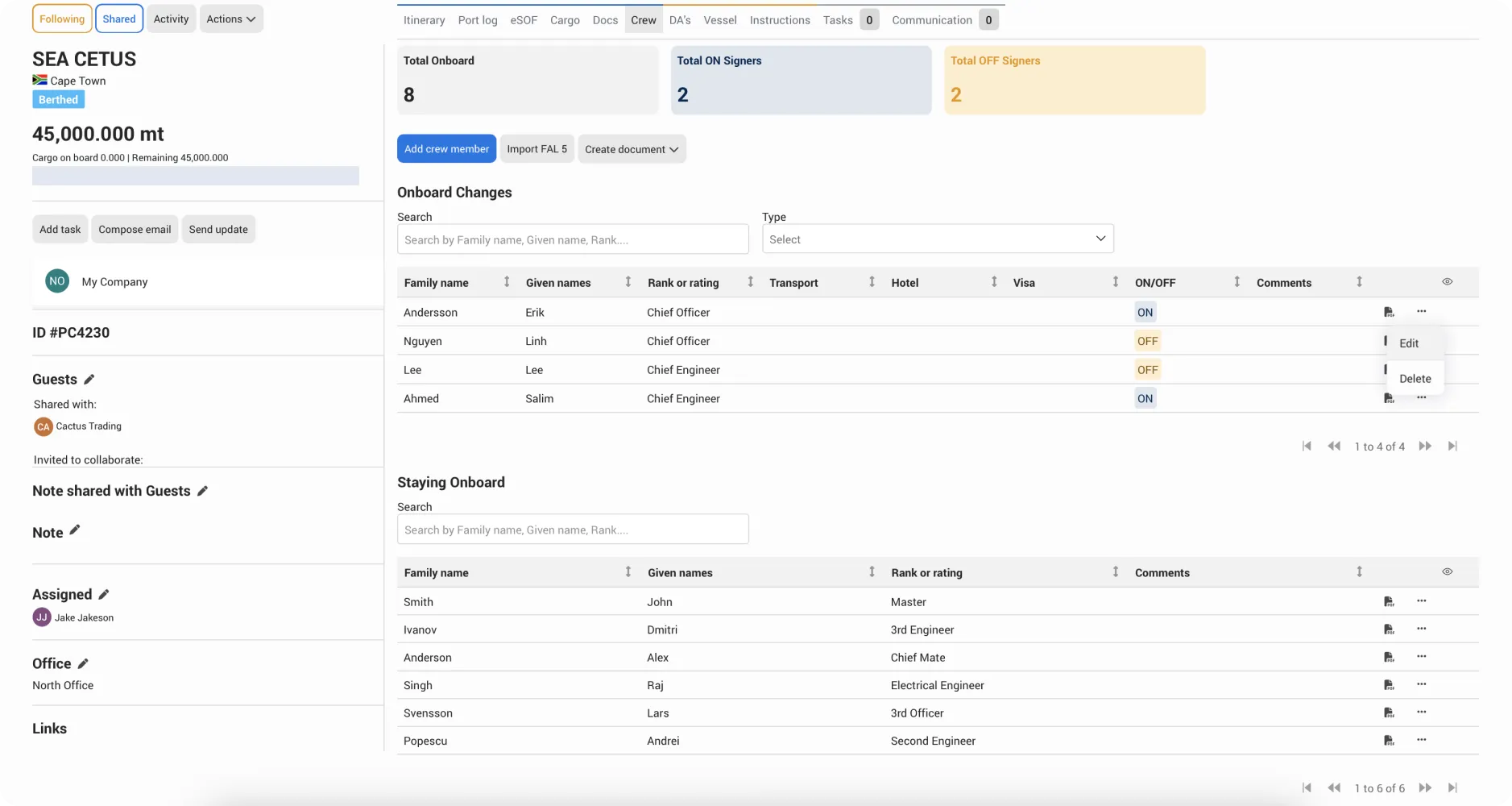
To edit or delete a crew member, click on the line with the crew member’s name. A popup will open where you can update the information or delete the crew member.
Alternatively, you can edit or delete a crew member by clicking the more menu (…) button at the end of the line.
Missing a document template?
If you don’t see a required document template in Create document or on the Crew member line, simply email us at [email protected] and we will add it for you.
Data compliance and privacy
Enqlare Port calls is built with data security in mind. To meet compliance standards, personal crew details are automatically deleted after 45 days once the Port call is Closed. Only aggregated totals and service records remain, ensuring reporting needs are met while protecting sensitive information.