Notifications
3 min
The Notifications page is your central hub for staying updated on all activity across Enqlare’s products —Shipments, Port Calls, and Laytime. Notifications are split into two sections:
Platform Notifications, which include all updates, chat mentions, email replies, and task assignments linked to a specific context. Unassigned Emails, which are incoming emails not yet linked to a shipment, port call, or laytime.
With powerful filters, search, and bulk actions, you can easily organize your notifications and ensure you never miss important information.
Platform notifications
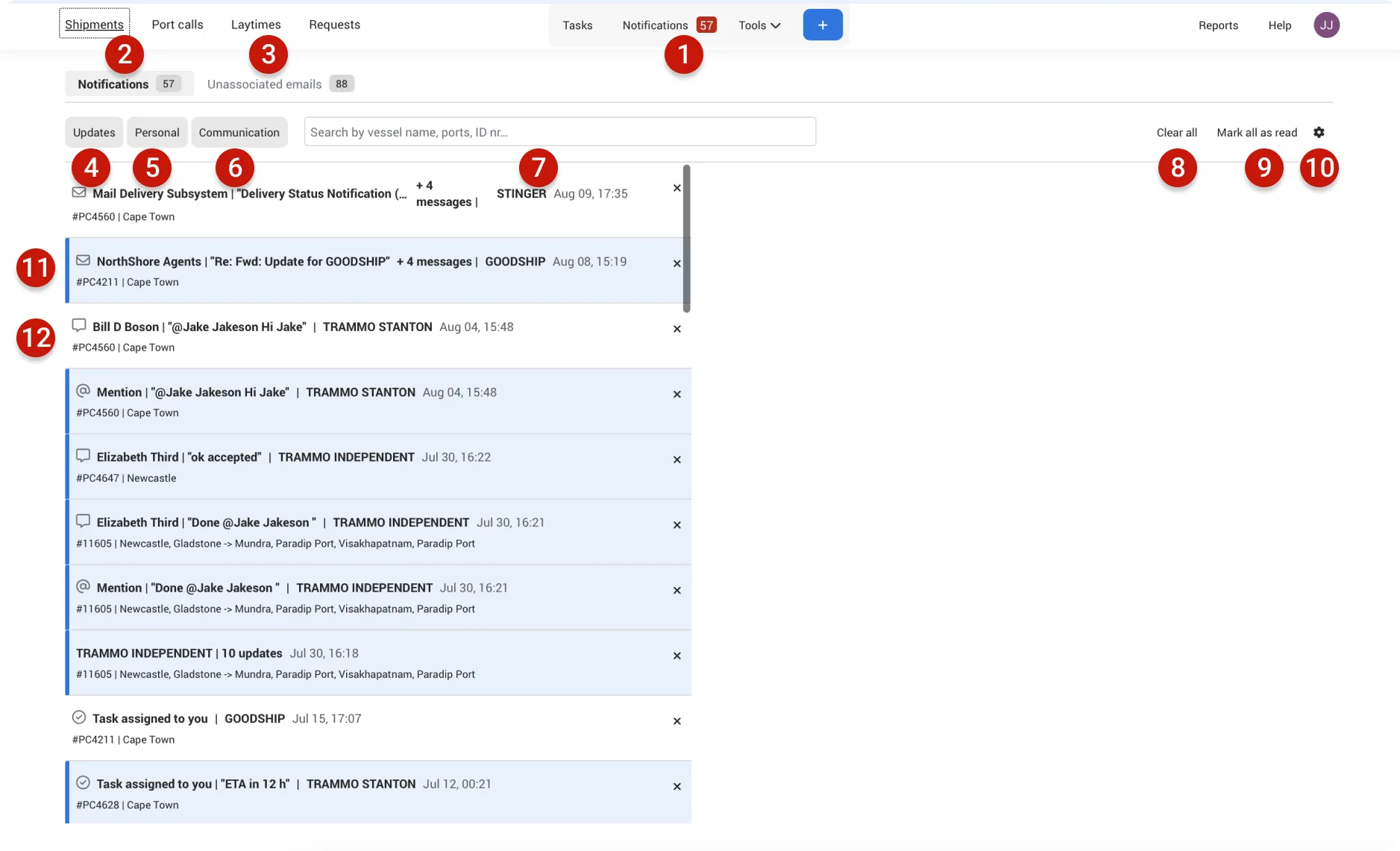
- Notifications: Shows a live count of unread alerts without needing to open the page. Navigate to the Notifications page to view all alerts in detail.
- Platform Notifications: These are alerts related to a context you’re following on Enqlare—such as a shipment, port call, or laytime. They can include updates, chat mentions, email replies, or task assignments.
- Unassociated emails: Emails received in Enqlare that haven’t yet been linked to a context (shipment, port call, or laytime). Once associated, future replies will appear under Platform Notifications.
- Updates: A filter showing only update-type notifications, such as edits made to a shipment, port call, or laytime.
- Personal: A filter for personal notifications, including chat mentions, assigned tasks, or any item where your username is referenced.
- Communications: A filter to view only communication-based notifications, such as chat messages or email activity.
- Search: Quickly find a specific notification.
- Clear all: Delete all notifications in one click—handy for a clean slate.
- Mark all read: Mark all notifications as read at once—ideal for bulk management.
- Settings: Control how and when you receive notifications.
- Unread notification: Notifications are grouped into trails if they belong to the same context and type. Clicking a notification lets you read it in the right-hand panel or clear it with the x button.
- Read notification: Once opened, a notification is automatically marked as read.
Unassociated emails
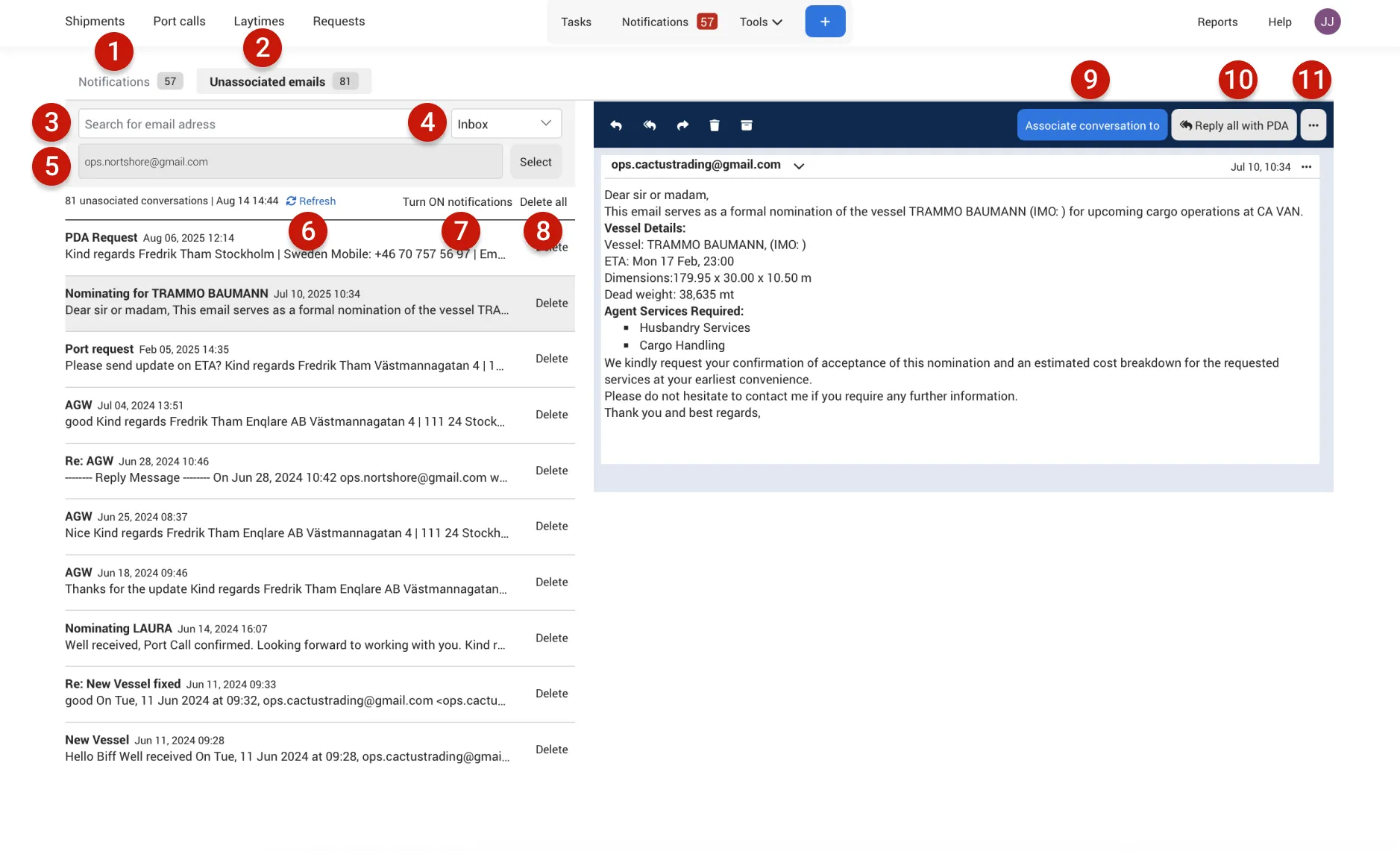
- Platform Notifications: These are alerts related to a context you’re following on Enqlare—such as a shipment, port call, or laytime. They can include updates, chat mentions, email replies, or task assignments.
- Unassociated emails: Emails received in Enqlare that haven’t yet been linked to a context (shipment, port call, or laytime). Once associated, future replies will appear under Platform Notifications.
- Search: Quickly find a specific email.
- Inbox: Choose between Inbox, Archived, and Deleted to view emails in the selected category.
- Email channel: Select one or more email channels to filter and view emails from specific sources.
- Refresh: Manually sync your inbox to check for any new emails.
- Turn ON notifications: Manage when and how you receive alerts about new emails.
- Delete all: Remove all emails in the current view with a single click—useful for starting fresh.
- Associate conversation to: Link an email thread to a port call, shipment, or laytime. Once linked, future emails in the thread will automatically appear in the linked context, and notifications will be shown on the platform’s notification page.
- Reply all with PDA: Quickly respond to PDA request emails by replying with a PDA. This action creates a PDA request automatically.
- More menu: Access additional actions, such as Reply, Forward, Archive, or Delete the conversation.