Create Request
Create a Port call request
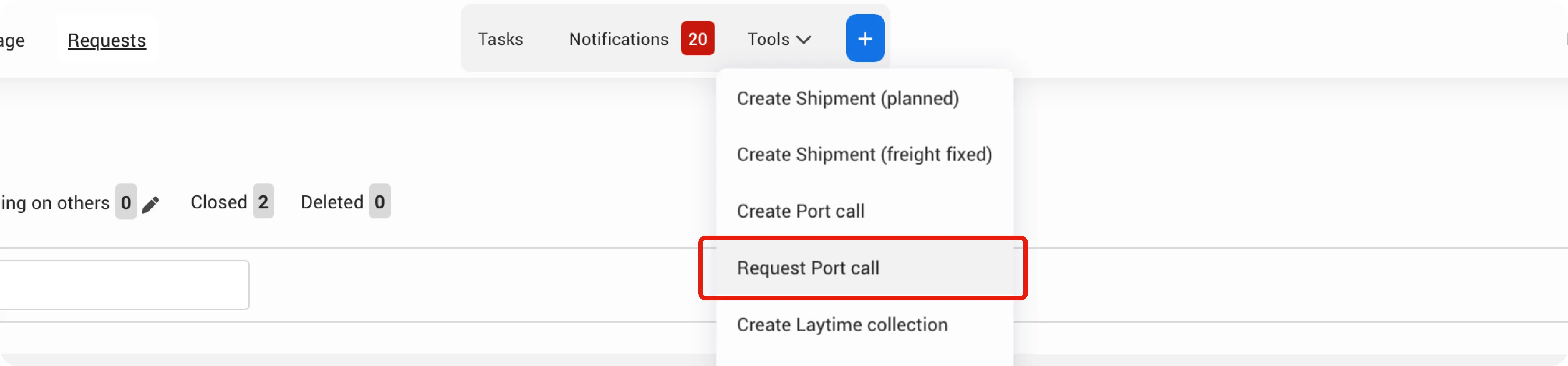
Click on the + button in the top of the navigation bar and then select "Request Port call" from the menu
Enter data
First, select the port and agency you're requesting services from. Next, in the form that appears, you'll see several fields related to the port call request. Most fields are optional and can be completed later if needed. Required fields are marked with an asterisk (*). All data can be edited later.
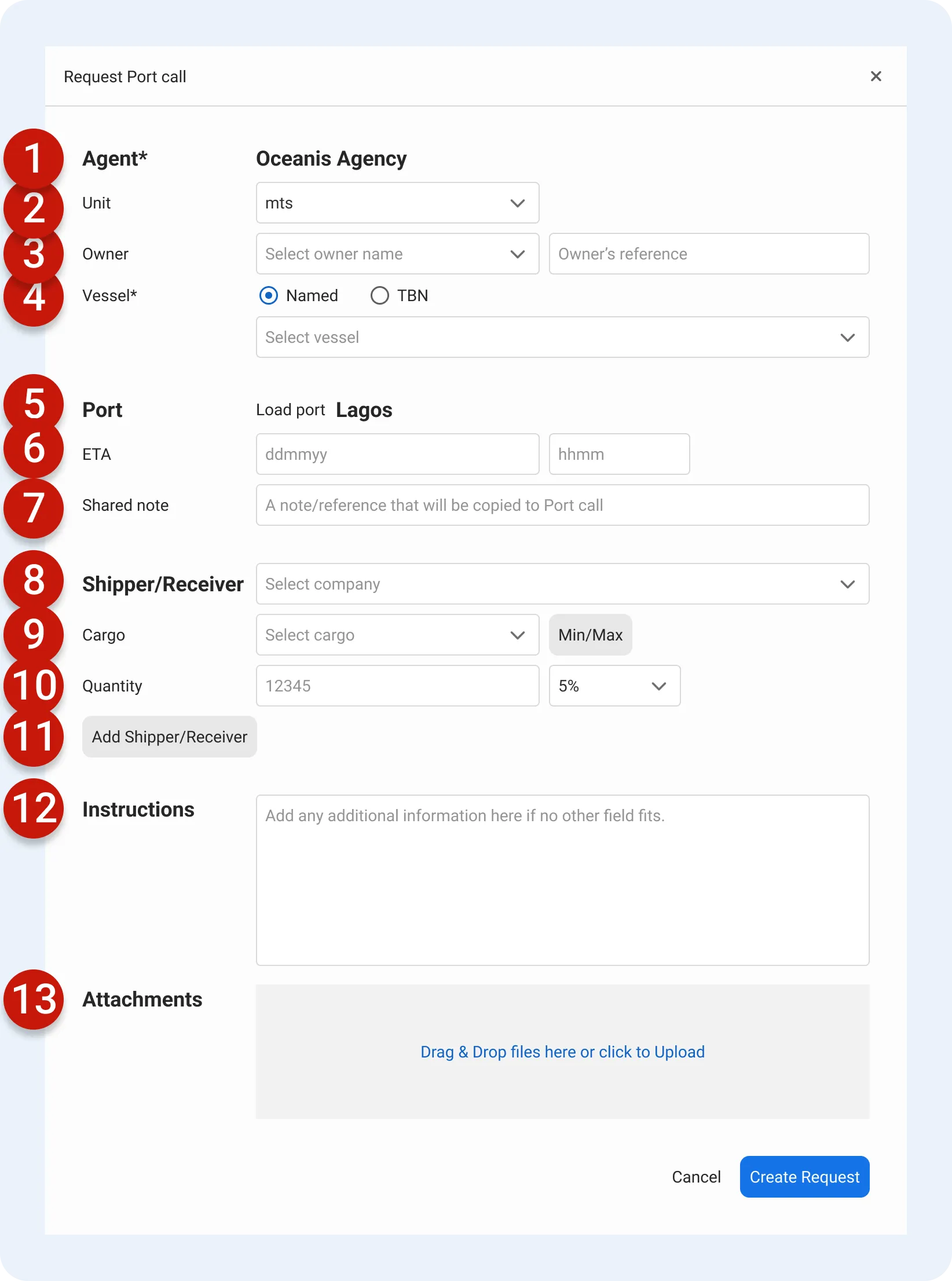
- Agent - The agent you're requesting services from
- Unit - The cargo unit for this port call
- Owner - Owner name and optional reference number
- Vessel - Select the vessel name from your list
- Port - The destination port (note: this can't be edited after creation—you'll need to create a new request if you select the wrong port)
- ETA - Estimated time of arrival
- Shared note - Add a reference or note that will remain visible throughout the request. This note is shared with the agent and copied to the Port call when created
- Shipper/Receiver - Select from your Contacts (if not listed, add to your Master data first)
- Cargo - Select the cargo type (if not listed, add to your Master data first)
- Quantity - Enter the cargo quantity to be loaded or discharged
- Add Receiver/Shipper - Add multiple shippers or receivers if handling multiple cargoes
- Instructions - Provide any additional instructions or relevant information for the agent
- Attachments - Upload any relevant documents
Click Create Request
This saves your information and sends the request to the agent. You can edit the request if needed, track the status, and communicate through the built-in chatst
Edit Request
Only the company that created the request can edit it. You can edit a port call request in two ways:
- Click the Edit Request button on the page
- Select Edit Request from the Actions menu
All edits are automatically saved and logged in the activity timeline.
Important:
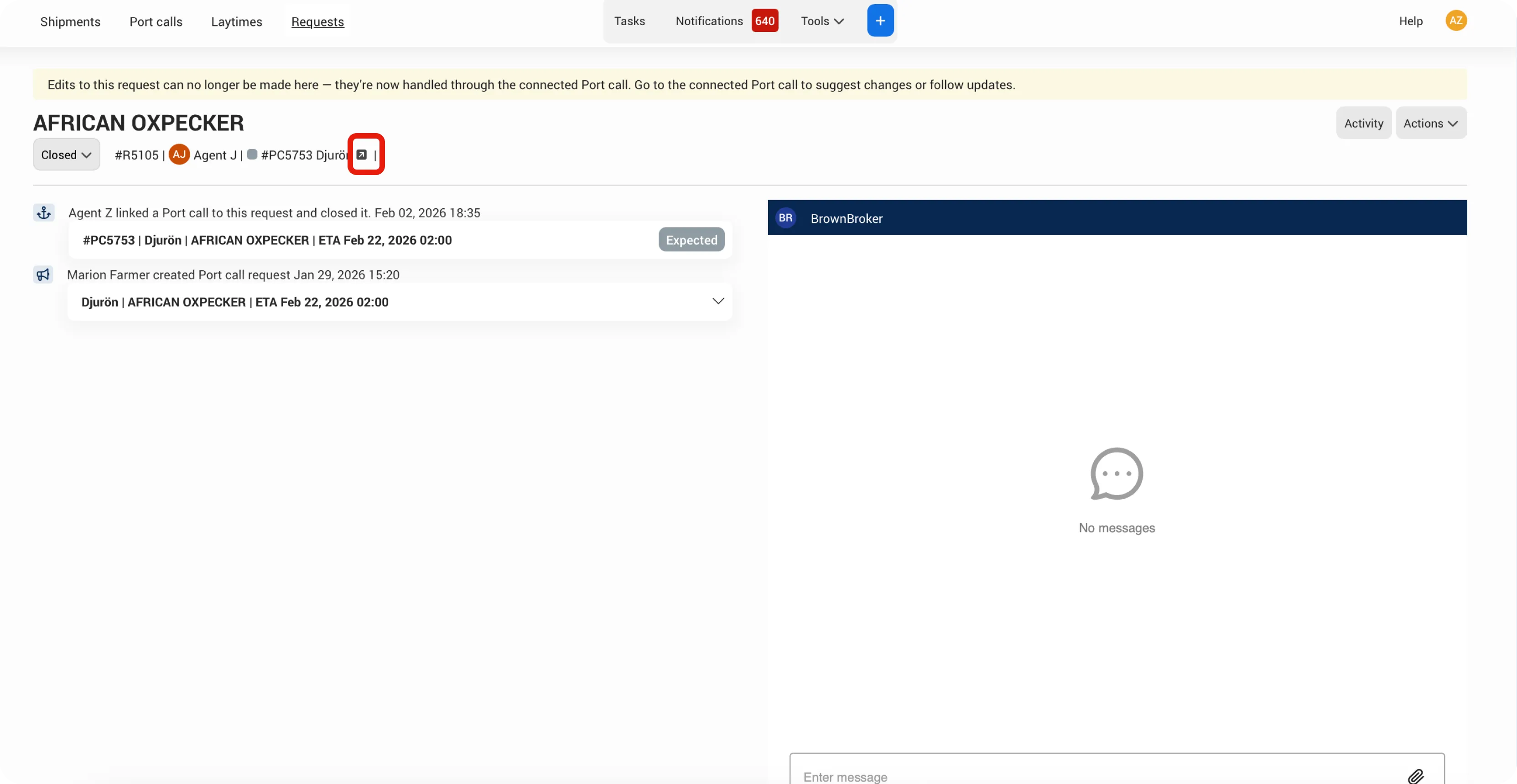
Once a port call has been created or connected to the request, the request can no longer be edited. This ensures there is one shared source of information between client and agent. If changes are needed after this point, communicate directly with the agent on the connected port call.
Port call connected
Once a Port call is connected, it will be displayed on the page. Click the icon to navigate to the connected Port call.
Have questions about editing requests, changing status, or what happens after a port call is connected?Check out our FAQ.