Port Log events
This guide highlights the key recommended workflows to help your shipping agency or port agent team maintain accurate, consistent, and reliable port calls data in Enqlare’s port agency operating system.
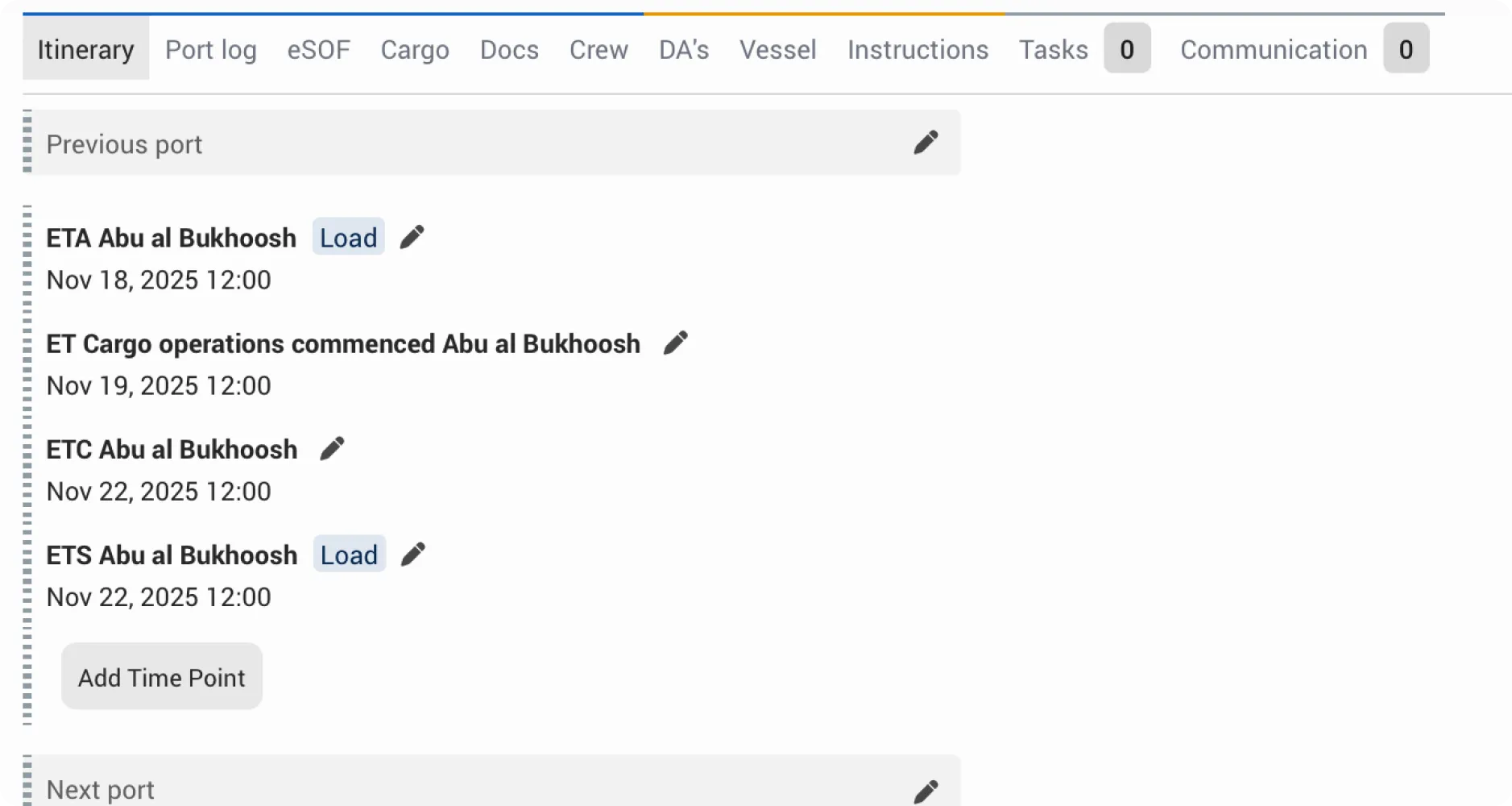
- Use system-generated Estimated Events
Always work with the default Estimated Events (ETA, ETB, ETS, etc.) created by the system. If the event already exists as an estimate, mark it as Actual instead of creating a new Port Log event for the same time point. This ensures your data flows correctly to eSOF, Laytime, Shipments, and other integrated tools.
- Use Port Log Events for all remaining operational activities
All operational actions, other than the Estimated Events mentioned above, should be captured as Port Log Events. These entries document what actually happened during the vessel’s timeline, appear in the SOF, and can include important details such as cargo, holds, gangs, and location to ensure accurate and complete reporting.
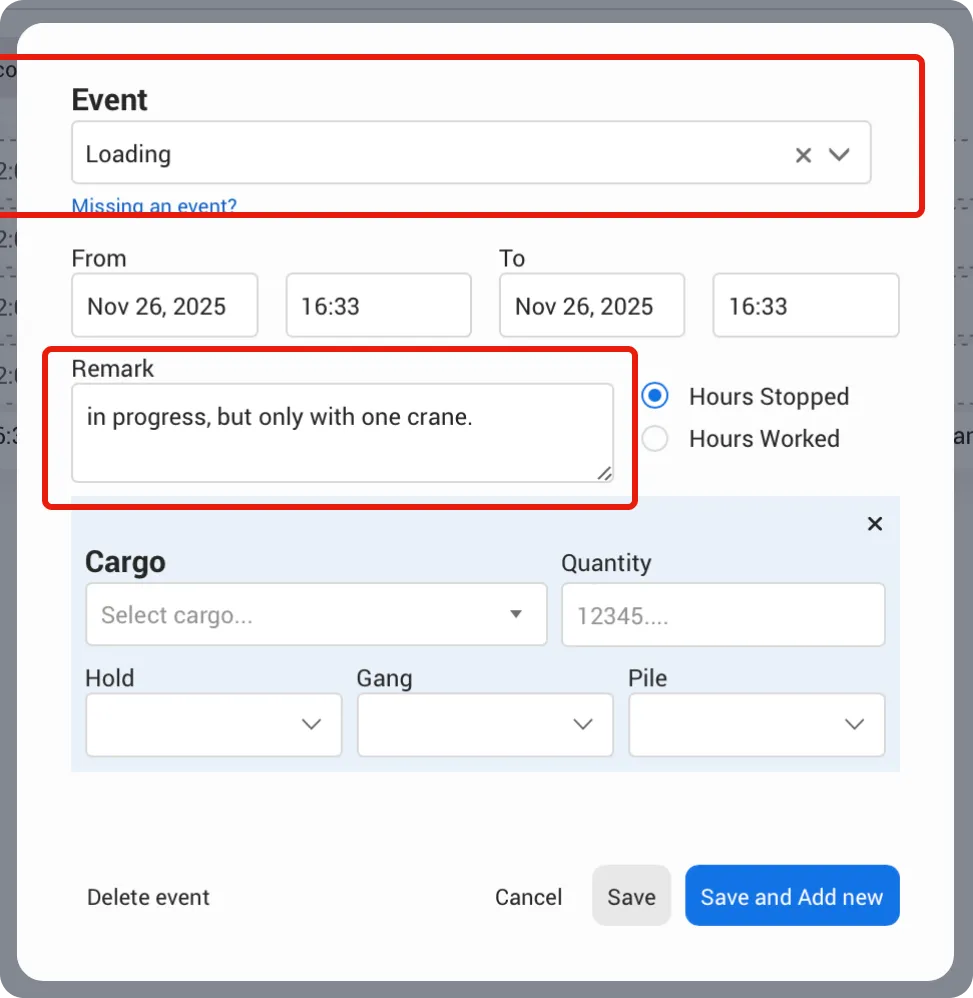
- Use event names for the action, and remarks for specifics
Event names are intentionally broad. Use the event name to describe the operation, and add any specific details such as “hold 2 and 5” or “in progress” in the remark field. This keeps the event list clear and prevents duplicates.
- Link cargo whenever applicable
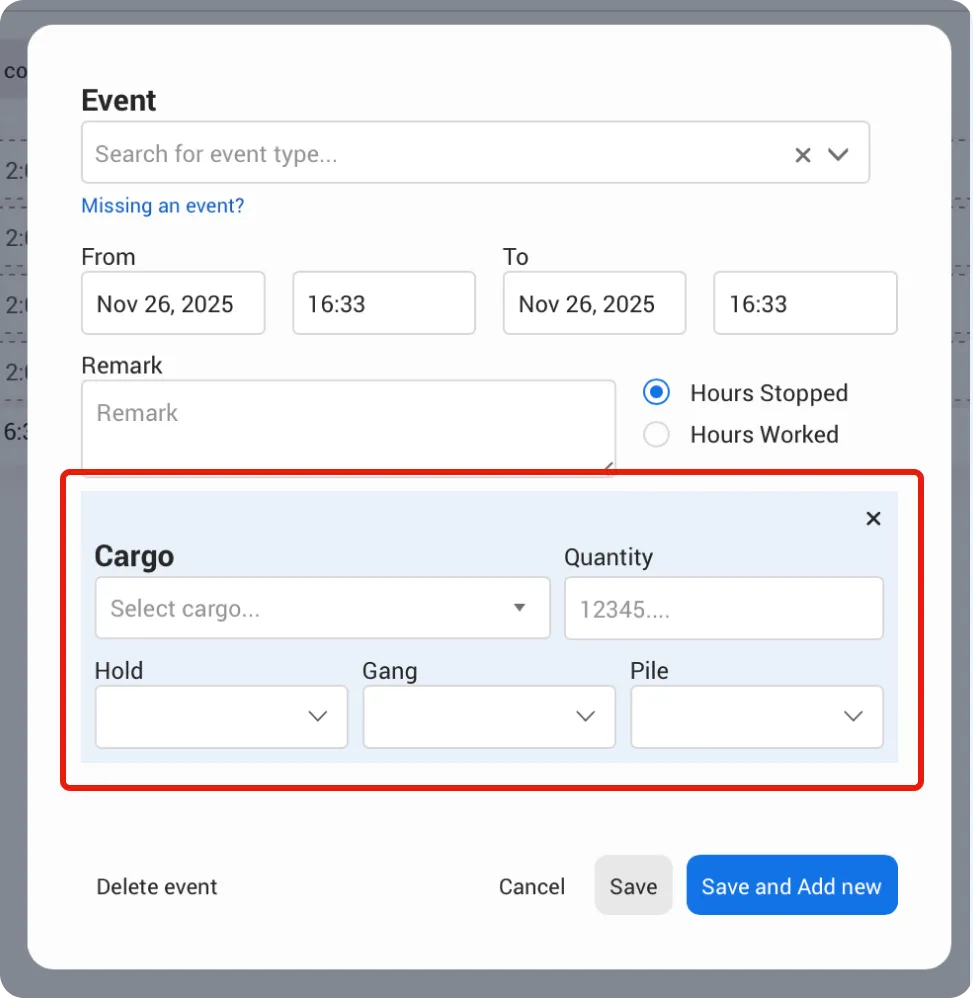
When adding loading or discharging events, always link cargo and quantity. This ensures your Stowage Plan and Itinerary update correctly without additional manual steps.
- Avoid duplicate or alternative event names
The Port log is where you capture all operational activities and time points. You can add events and comments that are visible to your company and any clients you’ve shared the Port call with. You can also choose to automatically sync events from a terminal.
There two types of events in the port log:
- Estimated time events: These are added when you enter estimates while creating the Port Call. You can add more estimates later in the Itinerary tab. Estimated events help you plan ahead and ensure no time points are missed. When needed, you can update an estimated event to an port log event. Estimated events are not included in the SOF.
- Port log events: These events capture all operational details needed for reporting. You can link cargo, quantity, hold, gang, and more. Port Log Events are included in the SOF.
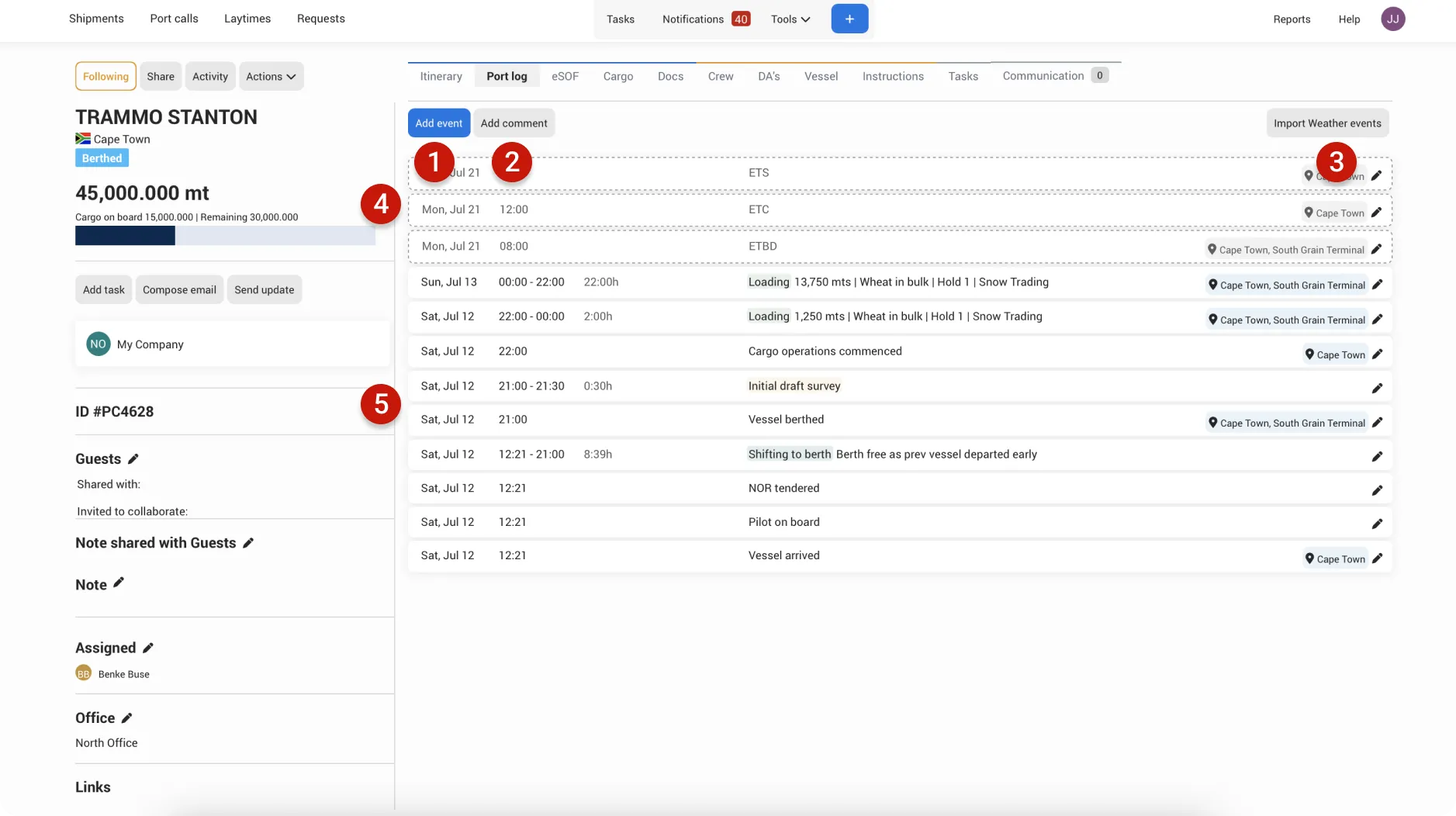
- Add event: Add events to the port log
- Add comment: Add comments or notes to the port log that are visible to your team and the clients that you have shared the port call with. The comments are not added to the SOF.
- Import Wheater events: Manually select or sync events added to the port.
- Estimated Time points
- Port log event
Tip: To ensure your data (ETA, ETB, etc.) flows correctly to eSOF, Laytime, Shipments, and other integrated systems, always use the default Estimated Events created by the system. Mark as Actual the existing estimated time points that are connected to a location, rather than creating new ones for the same event.
Add event
To add an Event, click the Add event button. Here you can choose from +100s of predefined events.
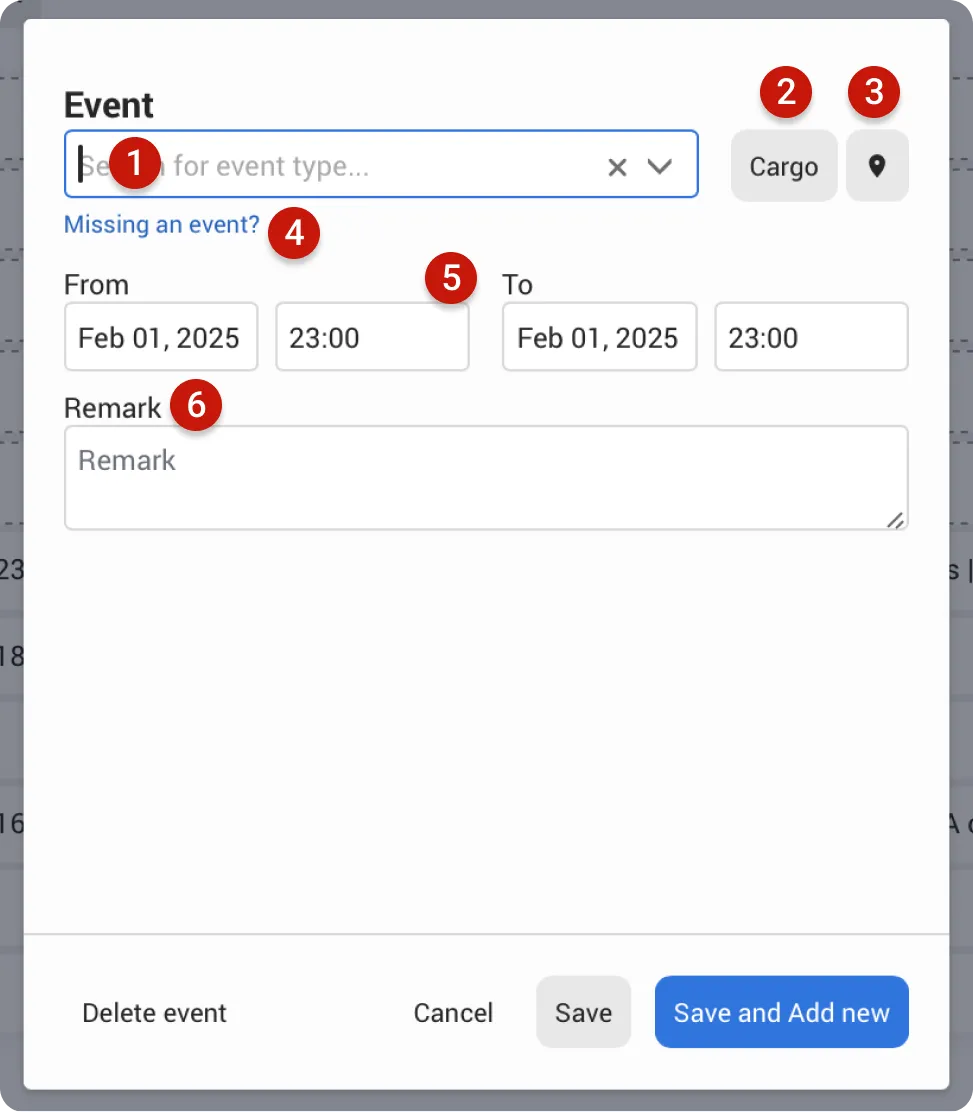
- Event: Select an event from the list.
- Cargo: Link a cargo and add the quantity for this event.
- Location: Choose the exact location where the event takes place.
- Missing an event: If you can’t find the event you need, click Missing an event to send a request to our team. We will add it shortly.
- Date and Time range: Enter the start and end date and time.
- Remark: Add a custom remark to provide more details for the event.
Tip:
Event names are designed to be general so they can be used in different situations, helping you keep your list of events short and clear.
If you need more specific wording — for example, Loading in progress hold 2 — we recommend selecting the event Loading and adding the details as a remark - in progress hold 2. On the SOF it will show in one line, and it will look as one.
Use event names to describe what’s happening, and remarks to add any specific details for that event.
Adding Cargo to an Event
To add cargo to an event, click the Add Cargo button. A new section will open where you can select from the cargoes added during the Port Call setup.
For each event, you can include cargo details, quantity, and additional information. Since each cargo is linked to a Shipper or Receiver, any Port Log entry with cargo and quantity will automatically update the Stowage Plan and the Itinerary tab.
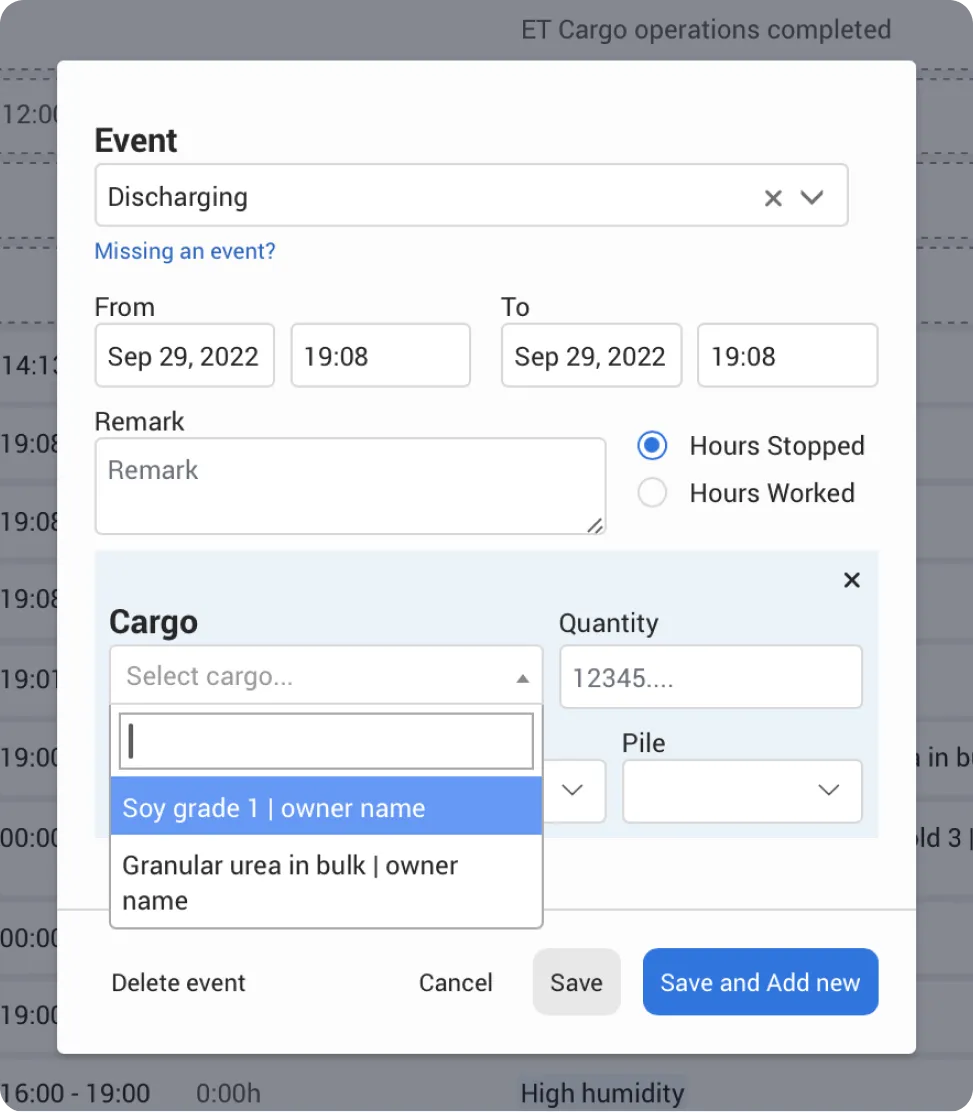
If the dropdown is empty, you’ll need to add cargoes first. To do this, go to Actions → Edit Itinerary → Add Cargo.
Itinerary-Linked Events
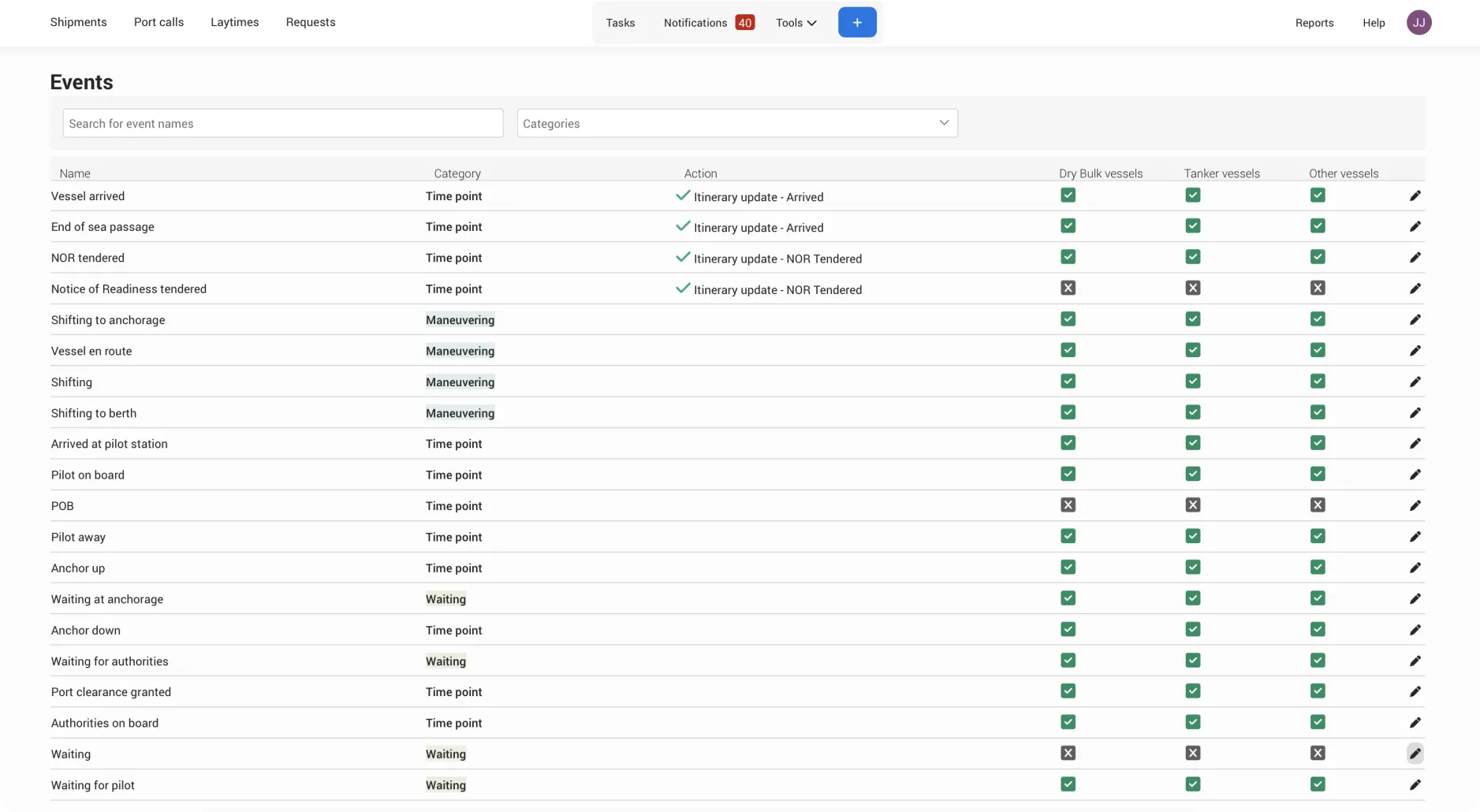
Some events in the Port Log are linked to automatic itinerary updates. For example, adding the event End of Sea Passage will automatically update the vessel status to Arrived.
To see which events trigger itinerary updates, go to Tools → Events and check the Action column. Events with Itinerary update listed will update the vessel status or itinerary accordingly.
Event Categories
Events are grouped into categories to help organize and analyze data more effectively. For example, events like Rain and High Humidity fall under the Weather Delay category. These categories can be used in Reports to highlight specific trends and are also reflected in your SOF .
To view which category an event belongs to, go to Tools → Events.
Turning OFF events
Tools -> Events
Turning off events gives you full control over which options are available when adding a Port Log event. Since the same event may appear under different names (based on user preference), this feature helps you avoid duplicates and ensure consistent naming.
By keeping only the preferred version active, you make your Statement of Facts clearer and more standardized. To manage this, go to Tools → Events, then edit and turn off the events you don’t want to use.
Add comment
To add a comment, click the Add Comment button. Comments are useful for making notes during the timeline and tracking important observations.
Comments are not included in the SOF and are only visible to users with access to the Port Call — including your team members and any clients you’ve shared it with.
Import weather events
Importing weather events is helpful when multiple vessels are at the same terminal and experience the same weather conditions. Instead of entering the events for each vessel separately, you can add the weather events to the port and then either automatically sync or manually import them into the relevant Port Calls.
This way, you only add the events once, and they’re applied to all selected Port Calls—saving time and ensuring consistency.
Add port events
Port call -> Ports tab
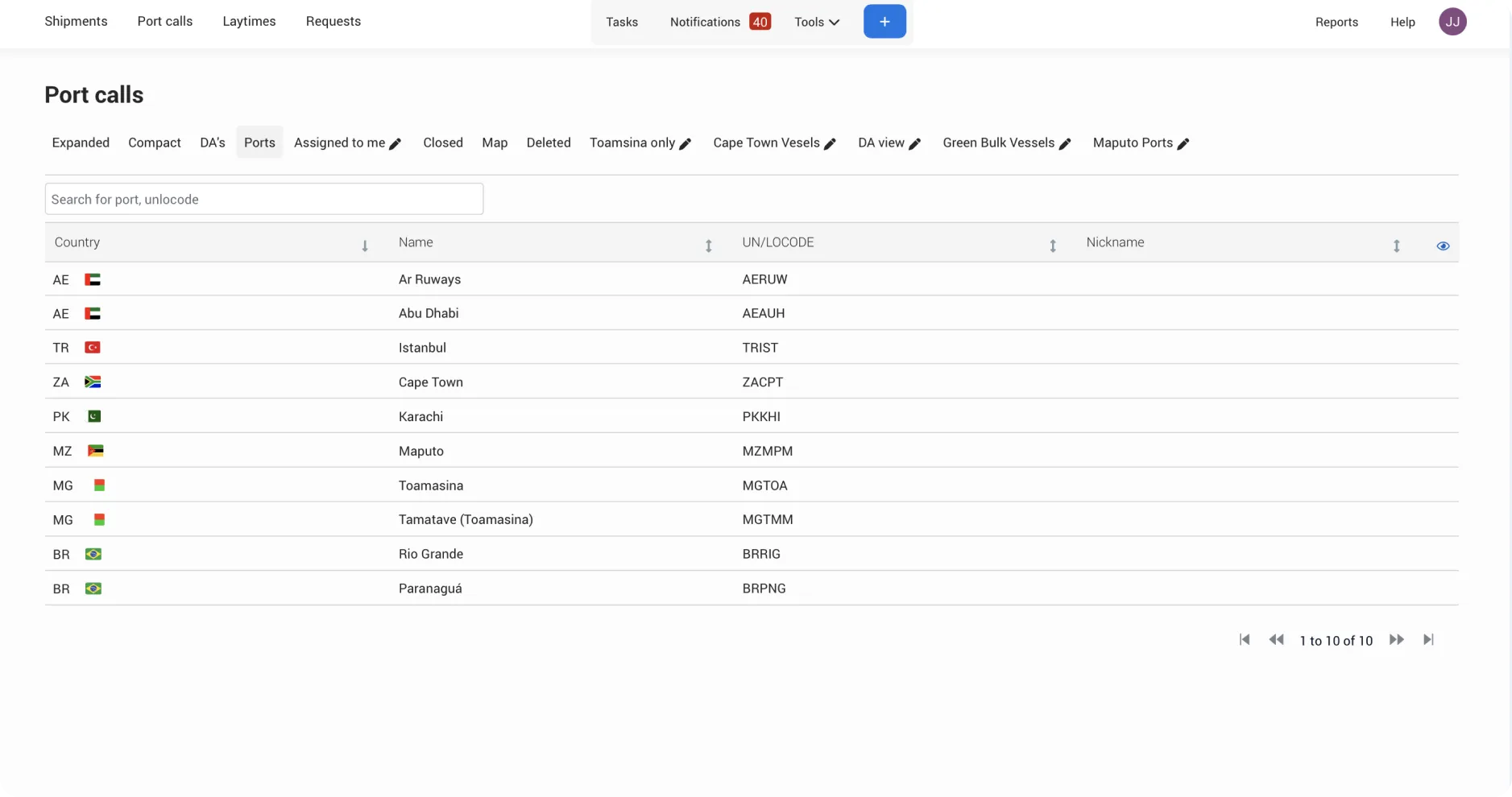
To add Port Events, go to the Port Call and open the Port tab. Select the relevant port, then choose the berth where the events occurred. From there, you can add the appropriate events.
Sync or add port events to Port call
To sync or manually add port events click Import weather events.
To manually add events: select the relevant events and click Add to Port. The events will be added to the Port Call, and you’ll be able to edit them as needed.
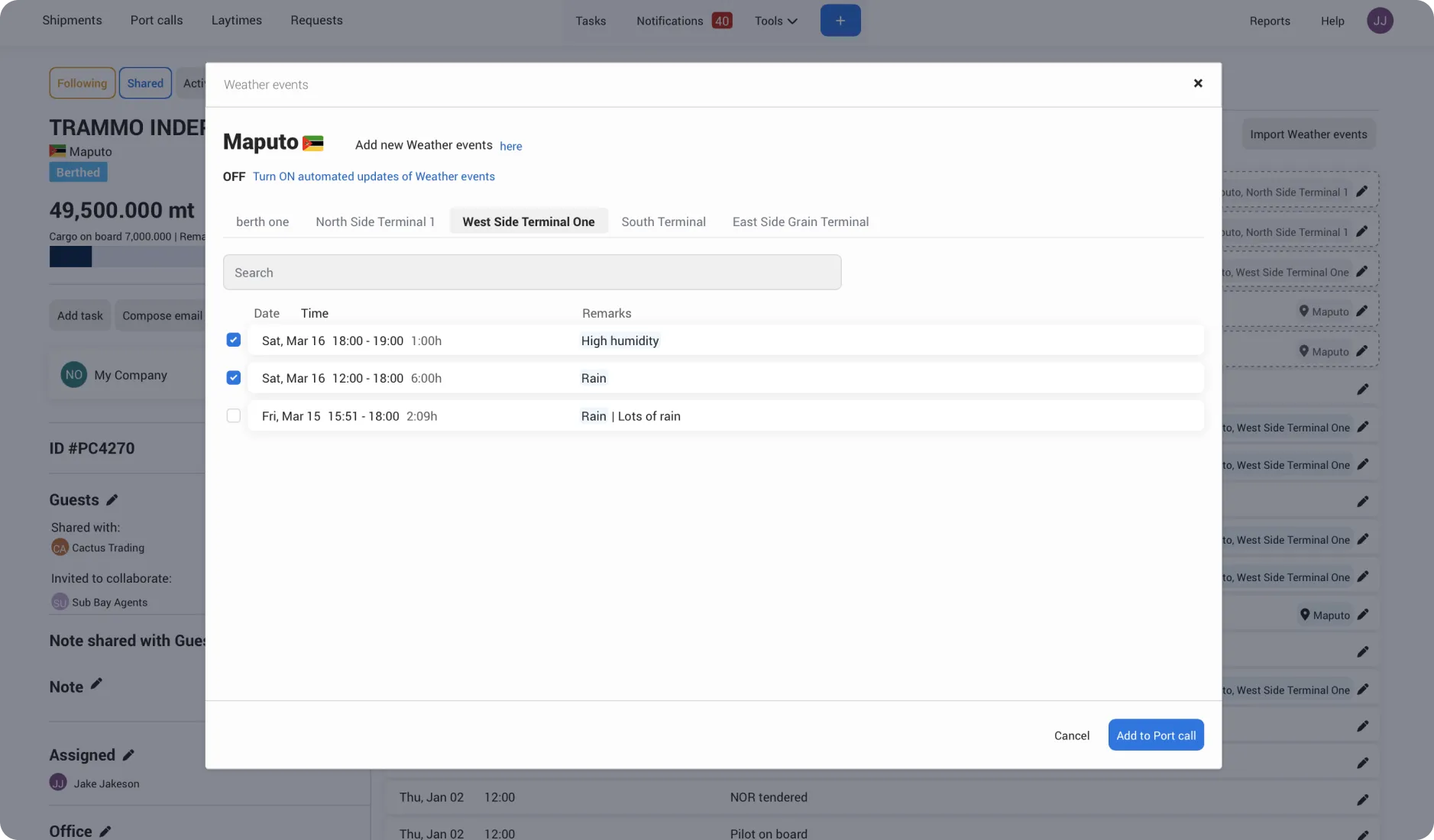
Enable automatic syncing of Port Events: click Turn ON automated updates of Weather Events. Then, select the berth or terminal and choose the start date and time for syncing.
Once enabled, all events from that berth or terminal will appear in the Port log with the label Port event. These events can only be edited from the Port page.
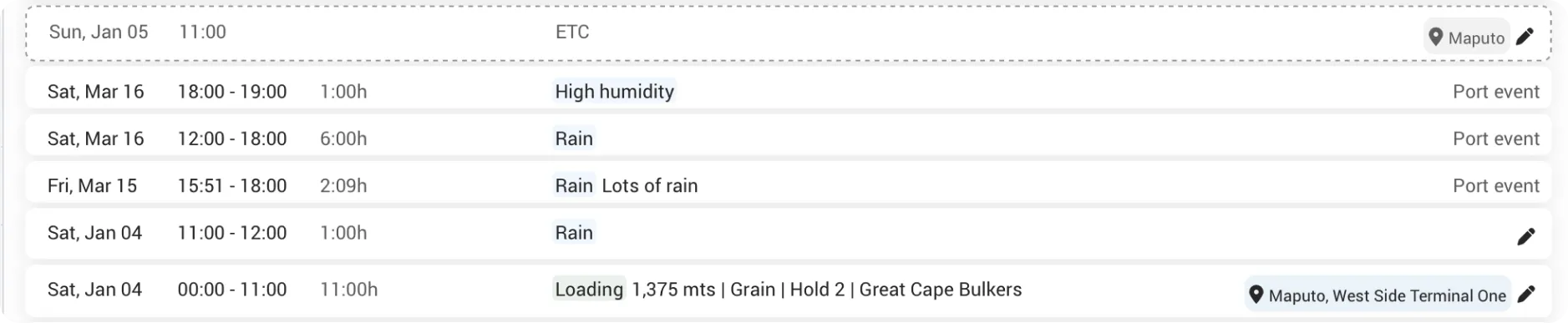
To stop syncing, open the Import Weather Events popup and click Stop Updates. You’ll be given two options:
- Keep events in the Port Log – the events remain and become fully editable.
- Remove events – the synced events are deleted from the Port Log.